Using Email Aliases in Outlook

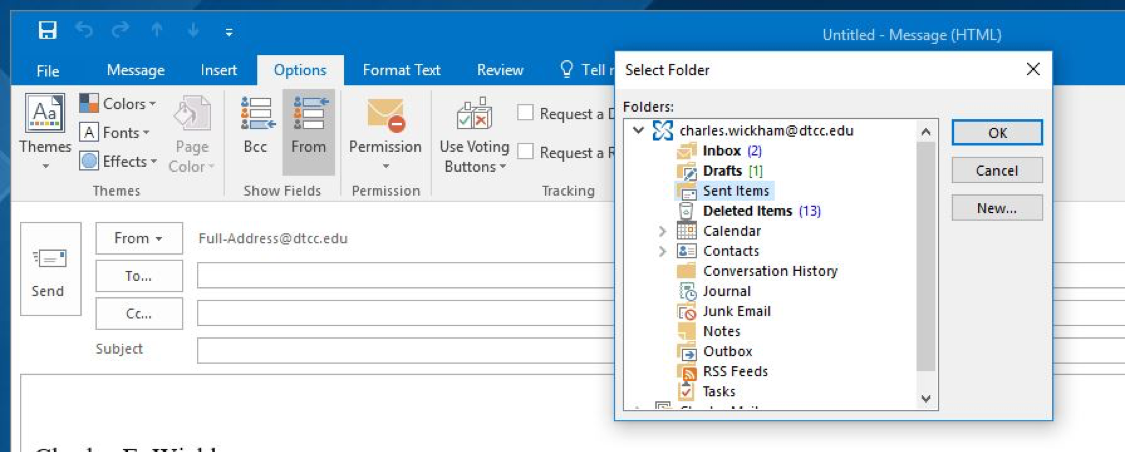
Outlook screen displaying selecting a folder.

For users that have a need to send an email that appears to come from a shared account, do the following:

  1. In Outlook click on “New Email.”
  2. Within the new email select the “Options” tab.
  3. On the options tab click on “From” in Show Fields.
  4. The “From” address line will now appear in all new emails.
  5. To add an Email alias click on the “From” button, then click “Other E-mail Address…” from the list.
  6. Enter the full E-mail address in the “Send From Other E-mail Address box and click “OK.”

The user will now have the option to select this Email address when sending an Email.

*Note:  The box will accept anything typed in, but the Exchange server will respond with an undeliverable Email response if the address is incorrect or the user doesn’t have permission to send on behalf of the specified user.

Currently all sent mail is set to save in the default sent folder.  Users have the option to select where individual Emails can be saved prior to the Email being sent, but this has to be selected per Email.  On the “Options” tab again, click on “Save Sent Item To” and then “Other Folder.”

Select the folder where they would like to Email to be saved when sent from the list and click “OK.”

PDF Instructions: Using Email Alias with Outlook

Delaware Technical Community College is an equal opportunity employer and educational institution. Delaware Tech does not discriminate on the basis of race, color, creed, religion, sex (including pregnancy, childbirth, and related medical conditions, sexual orientation, and gender identity), national origin (including limited English proficiency), age, disability, marital status, veteran status, or political affiliation or belief, or, against any beneficiary of, applicant to, or participant in a state or federal financial assistance program or any other classifications protected by federal, state, and local law. Auxiliary aides and services are available upon request to individuals with disabilities. TTY: (800) 232-5470 delawarerelay.com. Reports of sexual misconduct and/or discrimination, involving any student or employee of Delaware Technical Community College should be directed to the Title IX/Civil Rights Coordinator, at civilrights@dtcc.edu, (302) 857-1903. Reports may also be mailed in writing to Delaware Technical Community College, P.O. Box 897, 100 Campus Drive, Dover, Delaware 19904. Learn more about Title IX/Civil Rights at the College and Equal Opportunity is the Law (PDF).

Digital AccessibilityPrivacy Policy

© 2026 Delaware Technical Community College

To top