- On your computer, open Chrome.
- At the top right, click More Clear browsing data.
- Select a time range, like Last hour or All time.
- Select the types of information you want to remove.
- Click Clear data. Once done clearing, close and reopen your browser. You will likely have to sign-in again.
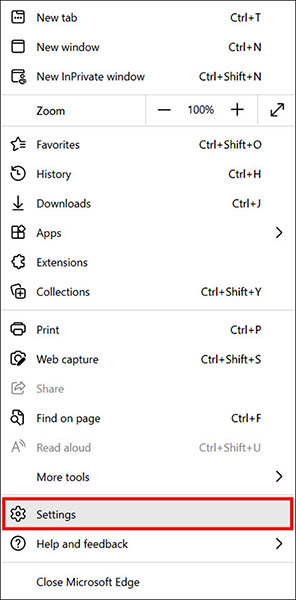
- Click the menu button
 (3 horizonal lines) and select Settings.
- Select the Privacy & Security panel and go to the Cookies and Site Data
- Click the Clear Data… The Clear Data dialog will appear.
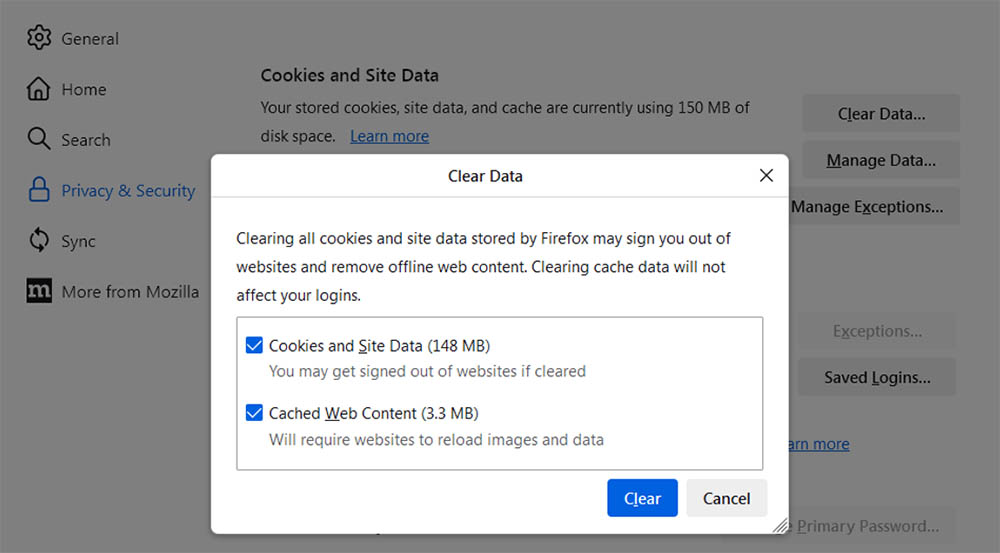
- Cookies and Site Data (to remove login status and site preferences) and Cached Web Content (to remove stored images, scripts and other cached content) should both be check marked.
- Click Clear. Once done clearing, close and reopen your browser. You will likely have to sign-in again.
- Click the Menu icon (3 dots)
 at the top-right corner of the browser window, then click Settings.
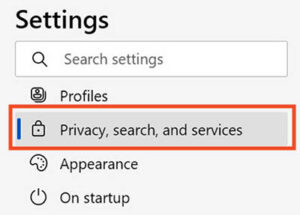
- Click on Privacy, search, and services from the list of options on the left-hand side under Settings.
- Scroll down to Clear browsing data and click the Choose what to clear button.
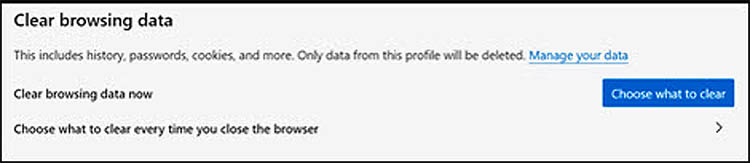
- Change the Time range at the top to All Time and check the boxes next to Cookies and other site data and Cached images and files. Then, click Clear now.
- After logging into Web Mail, In the top-right corner, you should see either your initials or a profile icon. Click on it and hit “sign out” (As referenced in the picture below).
- Now you can close the tab you signed out of, then reopen webmail from the my.dtcc.edu portal and log back in.
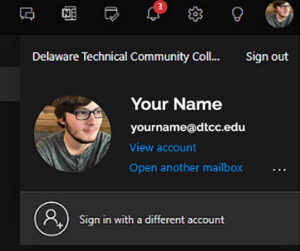
- After doing this, you should now be able to download/view the attachments you are sent. This is what we’ve been suggesting until Microsoft provides a fix for webmail.
- Open Outlook Desktop application by clicking on “Type here to search” and searching for Outlook in the bottom-left corner of your screen as shown below:
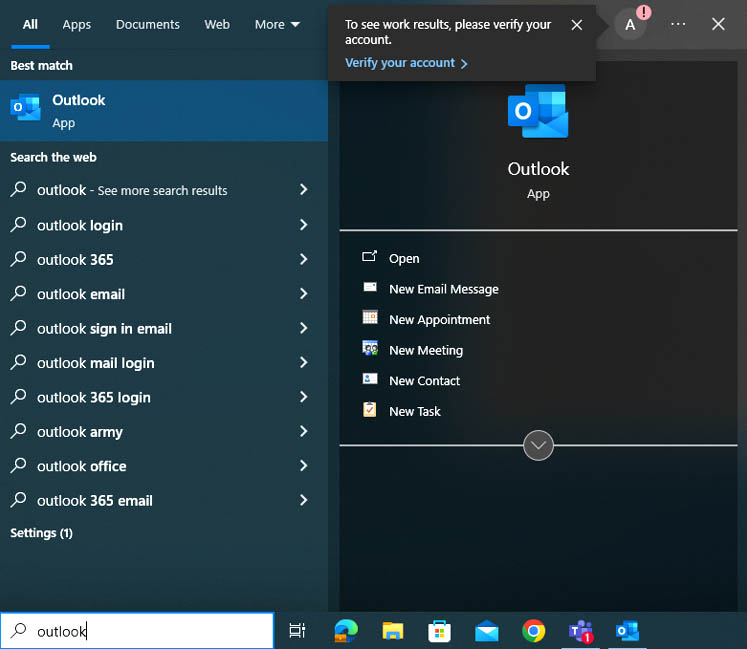
- You will then be greeted with the following screen below. Enter your full DTCC email and click “Connect”

- You will likely be prompted to sign-in. Afterwards, allow additional time for Outlook to detect your email. You should then get the following message.
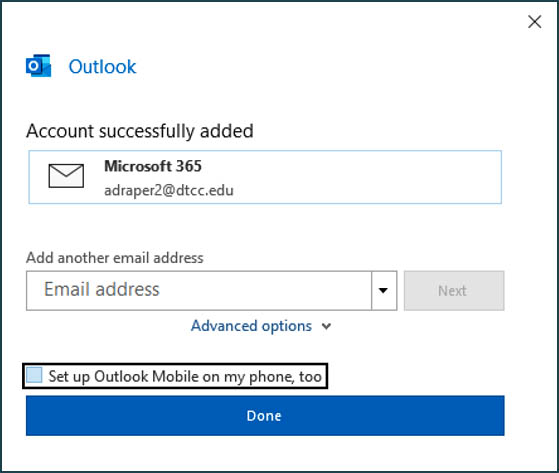
- At this time, we will uncheck the “Set up Outlook Mobile on my phone, too” checkbox. Click “Done”. Please allow additional time for your emails and calendar activities to sync. This can take an upward of an hour.
- In Outlook Web Mail, please select the attachment you will want to save by clicking on the arrow besides the attachment as shown below:
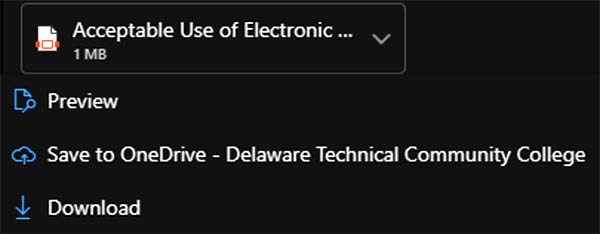
- You will then click on the “Save to OneDrive – Delaware Technical Community College” option. Now, you should then have a “View In OneDrive” option to select.
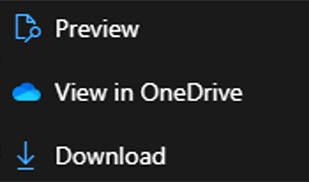
- After opening the document in OneDrive, in the top-left corner you can now select “Download” to make any markups or edits you want to the document.

To top